
LABAdobe Plugins
PostForge
In development
v0.1.0
The download link is coming soon.
A Photoshop plugin that places a CSV product list and product photos into a template to make a campaign post and story for every product.
- Category
- Adobe Plugins
- Platform
- Adobe Photoshop
- Version
- 0.1.0
- Updated
- 21 October 2026
- Requirements
- Photoshop 23.3 or later (UXP). A Magnific API key for the lifestyle flow.
PostForge is an Adobe Photoshop plugin that makes a social media post for every product in a campaign list, all in the same design. It does for single product posts what Furious Insert Creator does for brochure pages: it takes the product name, brand and price from a CSV and places them, with the product photo, into a PSD template.
Each product gets a 1080 × 1350 post and, if wanted, a 1080 × 1920 story from a second template. Across a 50–100 product list, the repetitive work — changing the text, placing the photo, lining up the price, saving the file — runs from the panel with one button.
The template speaks in layer names
The plugin leaves the design alone; it finds layers with specific names in the template and fills them. The designer builds the PSD however they like and only gives those layers these names. Pick a layer below, or type a price and try it — the panel’s template test does the same.
Layerskampanya-post.psd
SAMPLE
CeramicMug
599,00 TL
KUPA-001
Selected layer
FIYAT_ZEMIN
The price box. Its right edge stays put; it grows to the left as the price gets longer and shrinks as it gets shorter. The left piece moves with the price, so the corners stay intact.
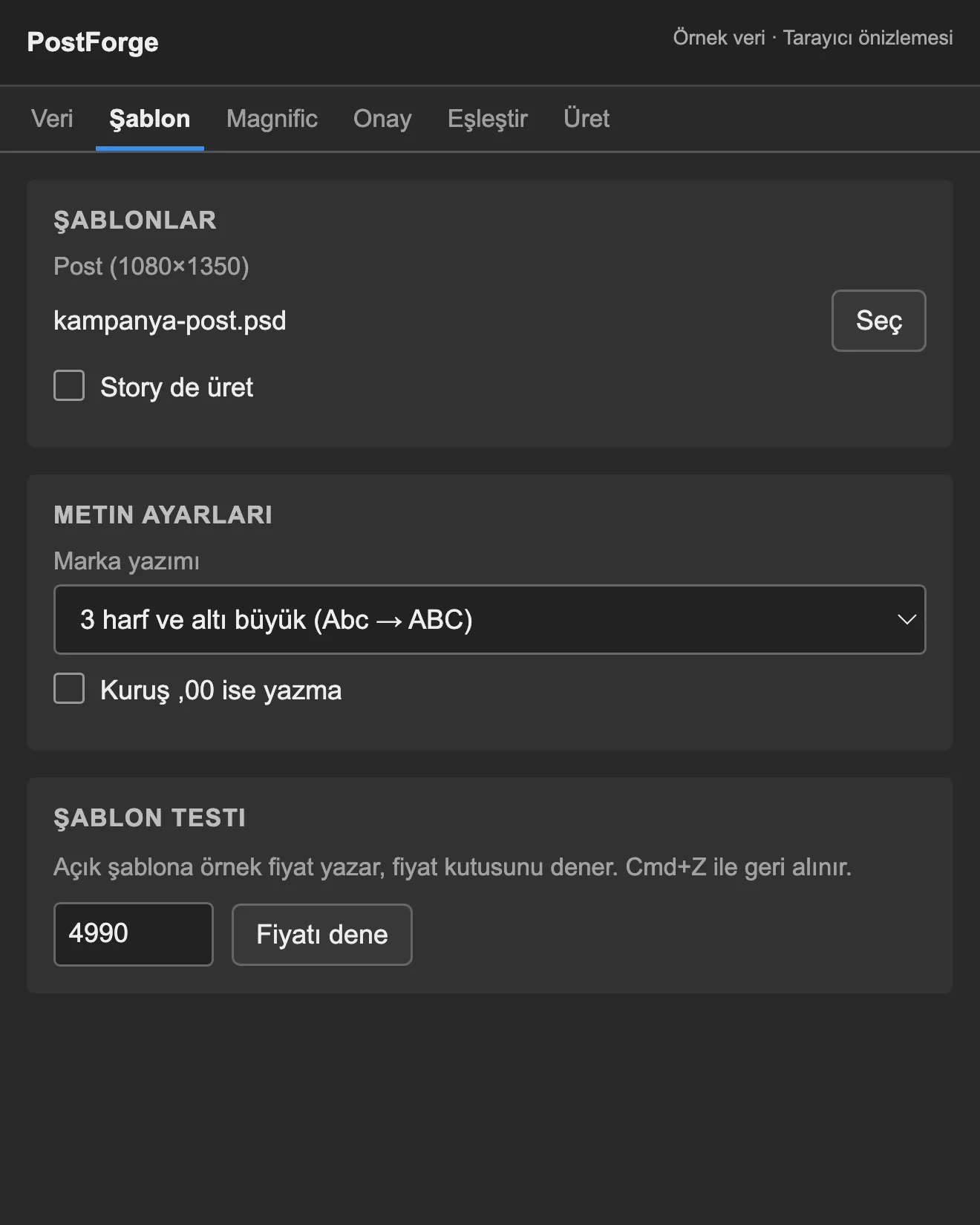
The price box is the fussiest part: 49 and 12,990 do not fit the same box. The plugin keeps the price’s right edge fixed, moves the box’s left piece along with the price and joins the two pieces with a mask in the middle, so the corners hold at any length.
Product photo or a scene
There are two image sources. With a product photo, the background is cleaned up and the product is fitted into the template’s area. In the lifestyle flow, Magnific generates images that put the product in a setting; on the Approve screen the product, logo and labels are checked, and only approved images make it into a post.
- Saved to
- lifestyle/post/KUPA-001.jpg · lifestyle/story/KUPA-001.jpg
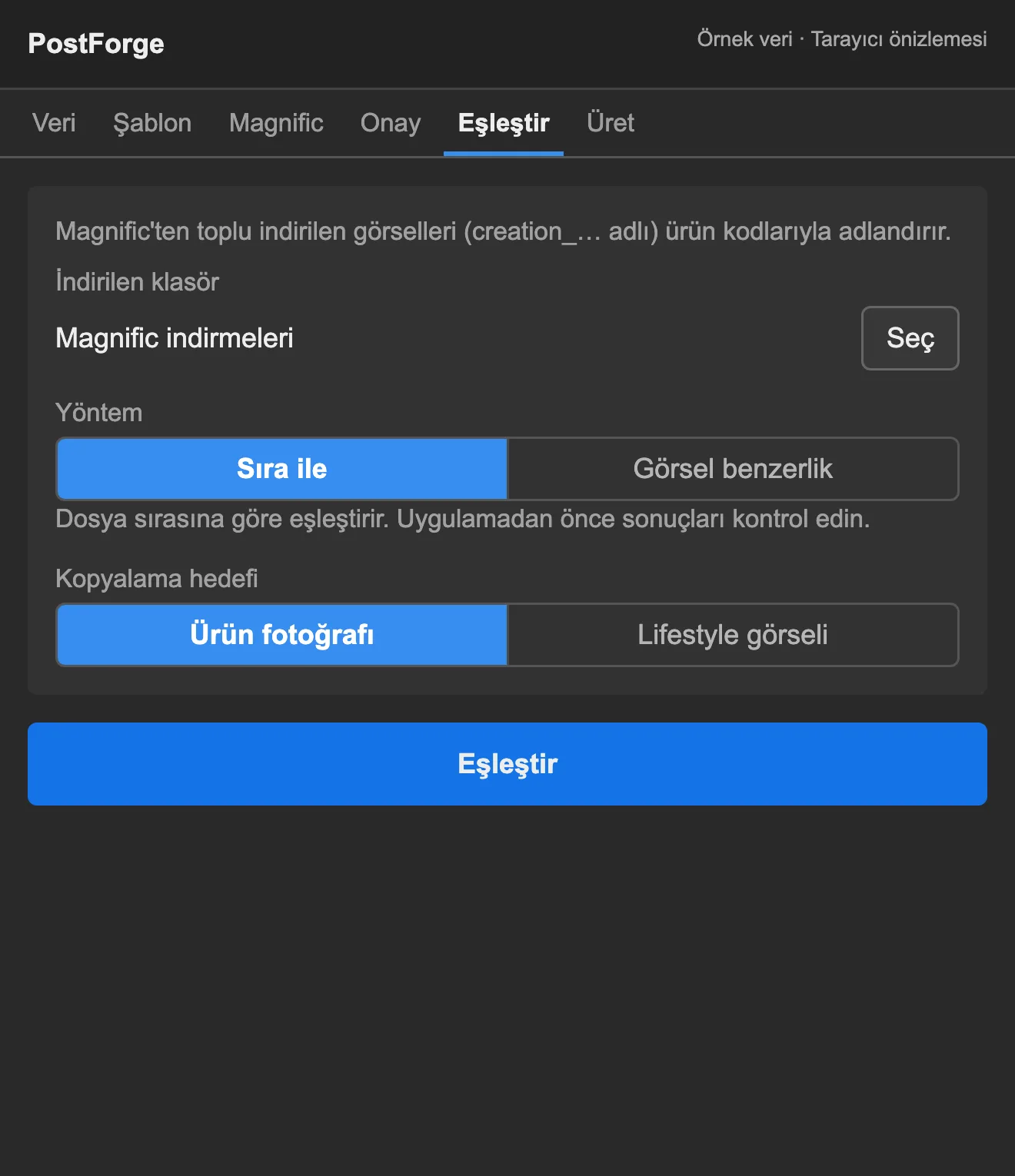
Images downloaded in bulk from the Magnific app can be used too. The downloaded creation_… files arrive in the same order as the product photos; the Match tab uses that order to link each image to its product code. In a real test with 70 files, all 70 matched correctly. Lifestyle outputs are saved to a separate folder, so they never overwrite the product posts.
How it works
- On the Data tab, choose the product list (CSV), the photo folder and the working folder. Name each photo after its product code:
KUPA-001.png. - On the Template tab, choose the post PSD; add a second PSD if you want stories. Set the brand casing and decimals, and try the price box.
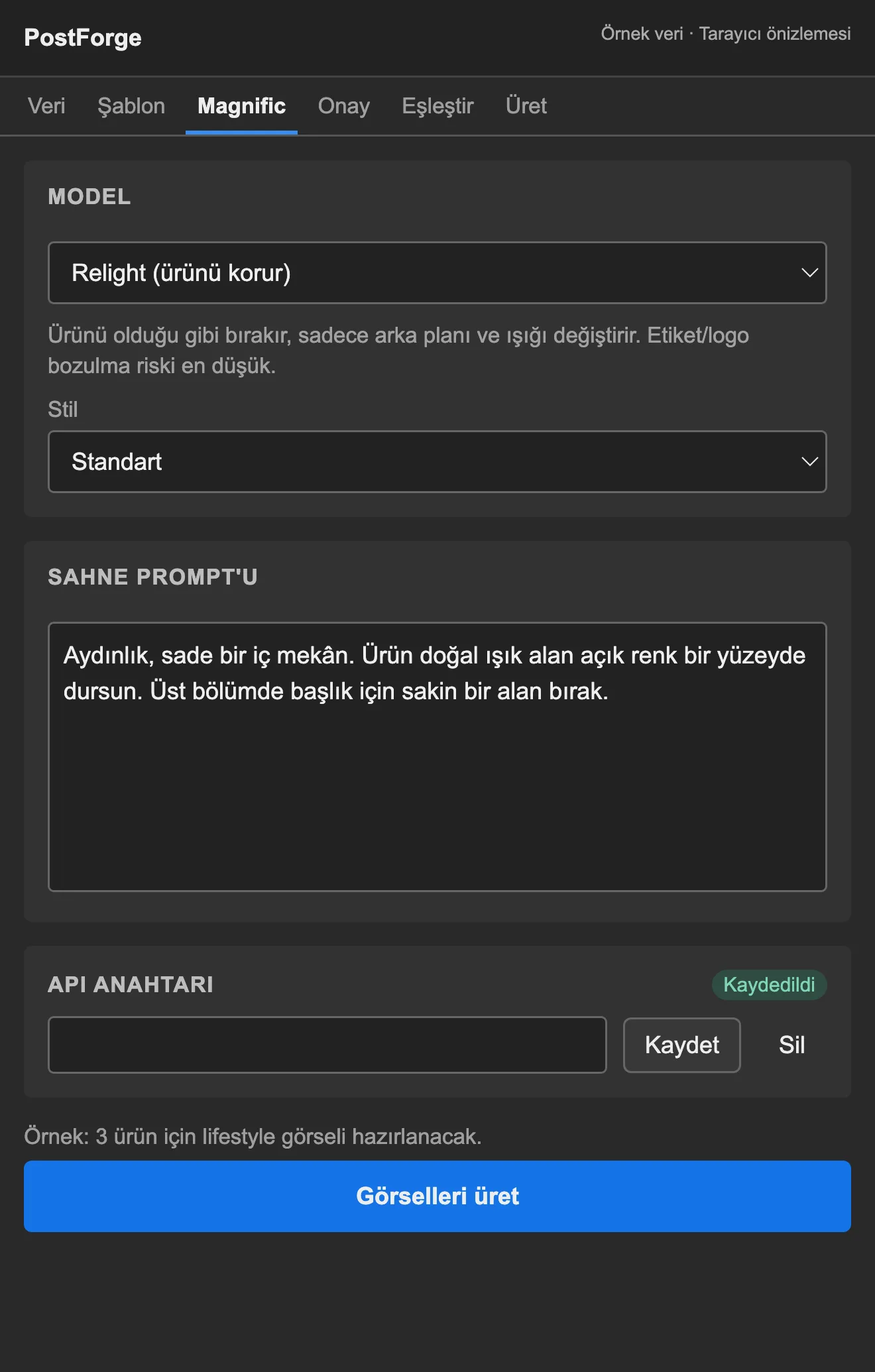
- Optionally, write a scene prompt on the Magnific tab to generate lifestyle images, and approve the good ones on Approve.
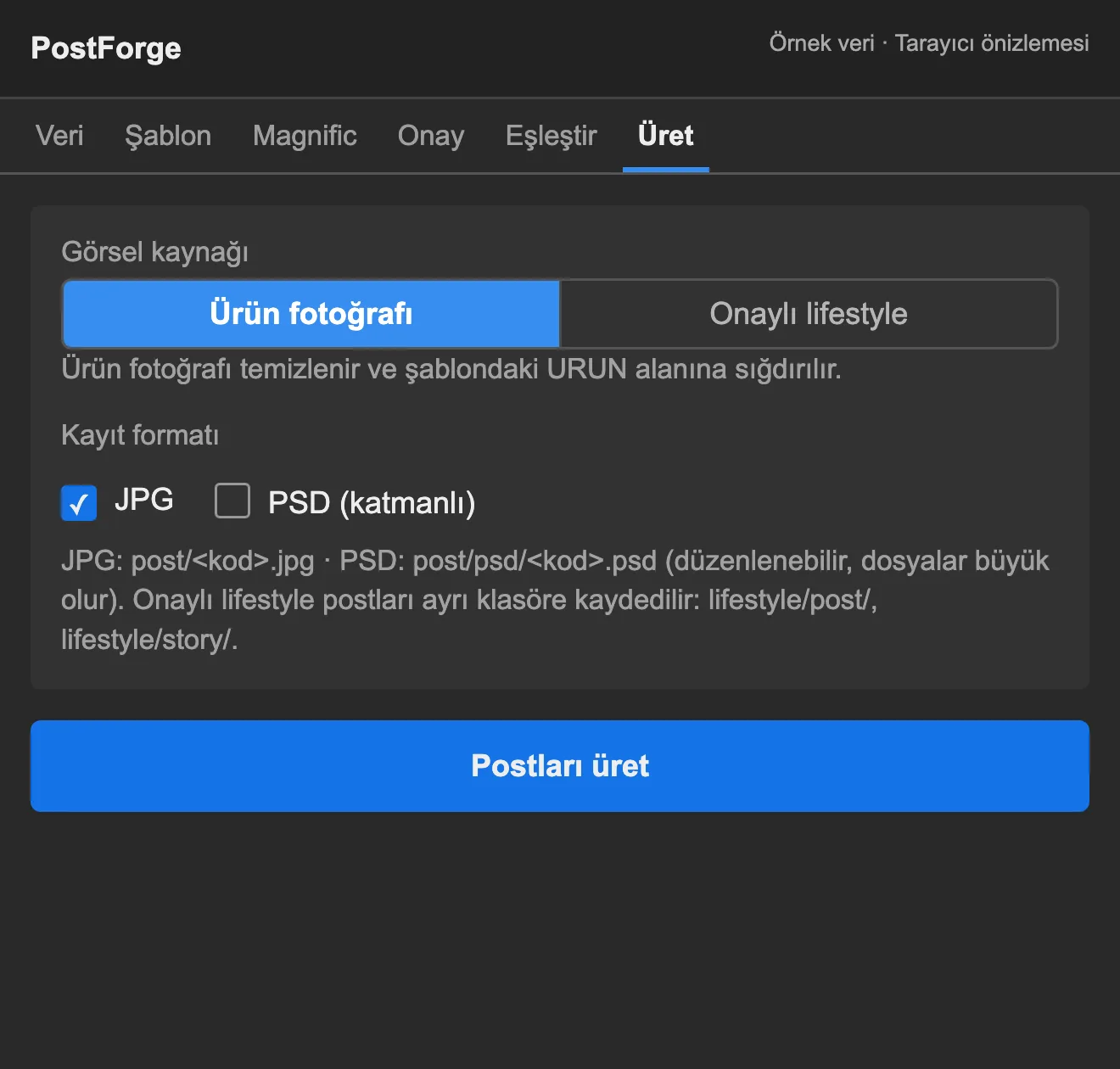
- On the Generate tab, pick the image source and JPG / PSD, then press Generate posts.
- Check the report and open the folder; regenerate any products that failed with Retry failed.
Who it’s for
Social media teams, agencies and designers who use one campaign design across many products.
Scope
PostForge is at a very early stage: I started building it in October 2026, and it is at version 0.1.0. The panel, tabs, price box and lifestyle approval have been tried in Photoshop; the latest interface changes, including the card layout, the new matching screen and the JPG / PSD options, are still being verified there. The interface and features may change, and there is no date yet for a public release.
The Magnific API uses credits — the app’s unlimited plan does not carry over to the API — and generating through the API sends product images to Magnific. Some model options are experimental. The plugin’s interface is in Turkish. The screenshots were taken in a browser from the plugin’s own interface code, with sample data; inside Photoshop it may look slightly different. The live examples above are stand-ins too: products, prices and scenes are sample data.
Interface
05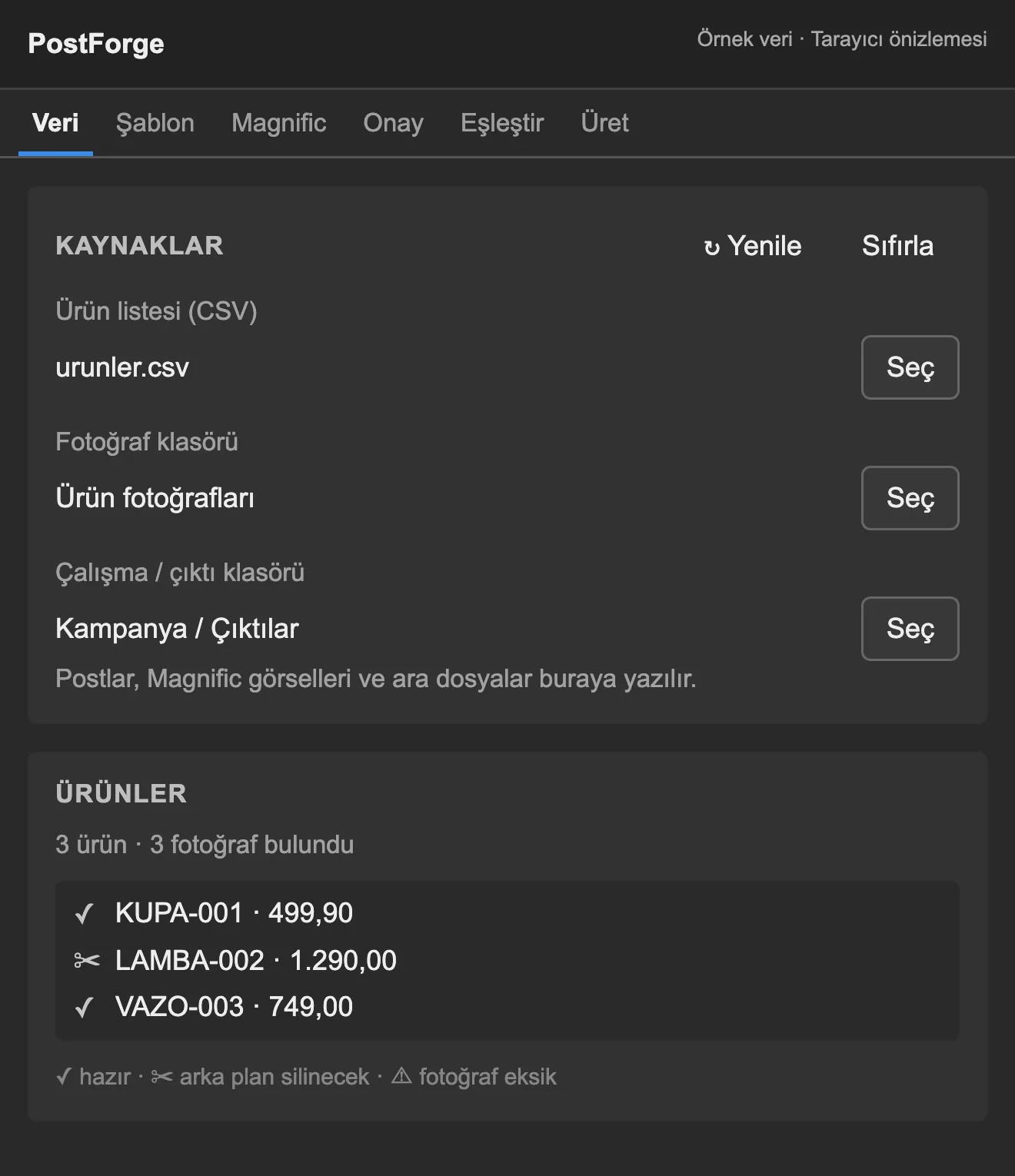
Features
08- Batch from a CSVTake product code, brand, name and price from a list; make a 50–100 product campaign in one go.
- Post and storyA 1080 × 1350 post for every product; optionally a 1080 × 1920 story from a second template.
- Photo matchingPhotos are found by product code; missing ones, and ones that still need their background removed, are flagged in the list.
- Background removalPhotos that need it are cleaned up, and the product is fitted into the template's area.
- A price box that adaptsThe box grows with a longer price and shrinks with a shorter one; an empty old price hides its layer.
- Lifestyle with MagnificGenerate images that put the product in a scene; only the ones you approve are used.
- MatchLink the creation_… files downloaded from the Magnific app to product codes, in order.
- JPG and layered PSDSave outputs as JPG, PSD or both; retry the products that failed.